Laptop RAM & SSD Upgrade in Azamgarh – Uttam Infotech
Slow startup, constant hanging, or Task Manager stuck at “Disk 100%”? Very often the fix is the right RAM or SSD upgrade, not a new laptop. Bring your laptop to Uttam Infotech in Kartalpur, Azamgarh, and we’ll check exactly what your model supports before recommending anything.
- Laptop RAM upgrade
- SATA & NVMe SSD installation
- HDD to SSD with data migration
- Desktop upgrades
- Compatibility checked before any part is fitted
- Estimate shared before work starts
- Near Shiva Hospital, Kartalpur
Your local laptop upgrade shop in Azamgarh
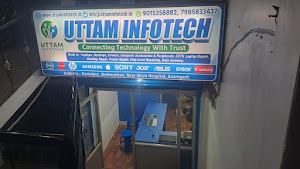
Uttam Infotech is a computer sales and services shop at Kartalpur, Brahmshtan, near Shiva Hospital, Azamgarh. Alongside laptop sales and repairs, we help customers get more life out of the laptop they already own, mainly through RAM and SSD upgrades.
An upgrade only helps if the part actually suits your laptop. RAM must match your laptop’s memory generation and slot type, and an SSD must match the drive bay or M.2 slot your motherboard provides. A wrong part may not fit, may not be detected, or may run below its rated speed. That’s why every upgrade at Uttam Infotech starts with checking your exact model.
- We tell you honestly if your laptop doesn’t need an upgrade, or can’t take one
- You get a clear recommendation and estimate before any work starts
- We explain what the upgrade will and won’t improve
Before you visit, keep these handy
- Laptop brand and exact model number (on the sticker underneath)
- Current RAM and storage (Settings → System → About)
- What feels slow: startup, apps, browsing, multitasking
- A backup of important files, if possible
Is your laptop slow, hanging or out of space?
Not every slow laptop needs new hardware. Sometimes the cause is software, overheating or a failing drive. Here’s how RAM and SSD upgrades relate to the problems we see most often.
Slow startup
Taking minutes to reach a usable desktop is a classic sign of a mechanical hard drive (HDD).
May help: HDD to SSD upgrade
Frequent hanging
Freezes when many tabs or apps are open usually mean RAM is full and Windows is swapping to disk.
May help: More RAM, and an SSD if you have an HDD
Low RAM (4GB)
Windows 11 alone uses a large share of 4GB, leaving little room for a browser, Office or Zoom.
May help: 8GB or 16GB RAM, if supported
Slow app loading
Apps that take ages to open, and files that copy slowly, point to slow storage rather than the processor.
May help: SATA or NVMe SSD
Old HDD performance
“Disk 100%” in Task Manager, clicking noises or slowing over time are common with ageing hard drives.
May help: SSD replacement with data migration
Storage full
A nearly full drive leaves Windows no room for updates and temporary files, which slows everything down.
May help: Larger SSD or a second drive, where a slot exists
Multitasking struggles
Switching between Excel, Chrome, WhatsApp Web and video calls becomes sluggish when memory runs out.
May help: RAM upgrade, ideally dual-channel
General slowness
Could be malware, startup clutter, dust and overheating, or hardware. Diagnosis comes first.
May help: Check-up before deciding on any upgrade
Laptop RAM upgrade & installation in Azamgarh
RAM (memory) is your laptop’s short-term workspace. When it fills up, Windows starts using the much slower storage drive instead, and that’s when you see lag, freezing and tabs reloading. Adding the right RAM gives programs room to work.
At Uttam Infotech we handle additional RAM installation, RAM replacement and full capacity expansion for laptops and desktops, after confirming what your model supports.
- RAM installation in an empty slot alongside your existing module
- RAM replacement when a module is faulty or too small to keep
- Compatibility check for generation, speed, slots and maximum capacity
- Dual-channel setup using a matched pair, where your laptop supports it
The most common upgrade we’re asked about. Makes Windows 10/11, browsing, Office and online classes much more comfortable.
For many browser tabs, coding, Tally plus Excel, photo editing or light video work.
For video editing, virtual machines, large datasets or 3D work, on laptops that officially support 32GB.
DDR3, DDR4 & DDR5: what your laptop can take
RAM generations are not interchangeable. Each has a differently placed notch, so a DDR4 module physically won’t fit a DDR3 or DDR5 slot. Laptops use the smaller SO-DIMM size.
| Type | Typically found in | Things to check |
|---|---|---|
| DDR3 / DDR3L | Older laptops, roughly up to 2015–16 | Many of these laptops need low-voltage DDR3L (1.35V). Fitting standard DDR3 can cause instability. |
| DDR4 | Most laptops from about 2016 to 2022 | Speed (e.g. 2400, 2666, 3200 MHz). Faster modules run at the laptop’s supported speed. |
| DDR5 | Many newer laptops (12th-gen Intel / Ryzen 7000 onwards) | Only works in DDR5 slots. Some thin models use soldered LPDDR5 that can’t be upgraded. |
Laptop SSD upgrade & installation in Azamgarh
An SSD (solid-state drive) stores Windows, your programs and files on flash memory instead of a spinning disk. For most laptops still running an HDD, it’s the upgrade with the most noticeable effect on startup and app loading.
2.5-inch SATA SSD
Same size as a laptop hard drive, so it fits in the existing HDD bay. Ideal for replacing an old hard drive.
M.2 SATA SSD
A small stick-shaped SSD that uses the SATA standard. Works only in M.2 slots that support SATA, not in NVMe-only slots.
M.2 NVMe SSD
The fastest type for laptops, connected through PCIe. Needs an M.2 slot that supports NVMe. Newer PCIe drives work in older PCIe slots at the slot’s speed.
SATA vs NVMe, in simple words
Both are SSDs, and both feel far quicker than a hard drive. The difference is the “road” they use. SATA is an older, narrower road, while NVMe uses the much wider PCIe road. For everyday use, a SATA SSD already feels like a big jump from an HDD. NVMe pays off more when you copy large files, edit video or load big projects.
Important: not every M.2 slot accepts every M.2 SSD. Some slots are NVMe-only, some SATA-only, some take both. We check your slot type before recommending a drive.
Typical manufacturer-rated figures. Real-world speed depends on the drive, the laptop’s slot and the task.
Which SSD capacity is right?
| Capacity | Good for |
|---|---|
| 128GB | Windows and a few apps only. Fills up quickly. |
| 256GB | Basic use: browsing, Office, study. |
| 512GB | Comfortable everyday use with photos and documents. |
| 1TB | Large files, software, games, office archives. |
| 2TB | Video projects, big media libraries, workstation use. |
HDD to SSD upgrade in Azamgarh, with your data moved across
Replacing a mechanical hard disk with an SSD is often the single most effective upgrade for an older laptop. SSDs have no moving parts, so they start Windows and open programs much faster. They’re also quieter and handle everyday knocks better than a spinning disk.
Depending on the condition of your old drive and what you prefer, we can clone your existing Windows, apps and files onto the new SSD, or do a fresh Windows installation and copy your personal files across.
- Drive health checkWe check the old HDD’s condition and how much data needs moving.
- SSD selection2.5-inch SATA, M.2 SATA or NVMe, based on what your laptop supports.
- Cloning or fresh installClone the existing system, or install Windows fresh when that’s the better option.
- Data migrationPersonal files, documents and photos copied to the new drive.
- Boot & storage setupBoot order, partitions and drive letters configured correctly.
- Testing & handoverStartup, detection and basic performance checked before you collect it.
RAM or SSD: which upgrade does your laptop need?
They solve different problems. Think of RAM as the size of your work desk and the SSD as how quickly you can fetch files from the cupboard.
| RAM upgrade | SSD upgrade | |
|---|---|---|
| What it does | Gives running programs more working memory | Stores Windows, apps and files on fast flash storage |
| Helps most with | Many tabs and apps open, multitasking, freezing under load | Slow boot, slow app opening, slow file copying, “Disk 100%” |
| Signs you need it | Memory use often above 85–90% in Task Manager | Laptop still has a mechanical HDD, or storage is nearly full |
| Won’t fix | Slow boot caused by an HDD; an old, weak processor | Running out of memory with many apps open |
| Depends on | RAM generation, free slots, maximum supported capacity | Drive bay or M.2 slot type (SATA / NVMe) |
On a laptop with 4GB RAM and an HDD, doing both upgrades together usually gives the most balanced result. Neither upgrade can make an old processor faster, and we’ll tell you if that’s the real bottleneck.
Quick upgrade check
Tick what applies to your laptop for a rough suggestion, then send it to us for a proper compatibility check.
Desktop RAM & SSD upgrades
Desktop PCs are usually easier to upgrade than laptops, with more slots and more room. We also upgrade office and home desktops.
Desktop RAM installation
Adding or replacing DIMM modules to match your motherboard.
Desktop SSD installation
SATA or M.2 NVMe SSD as the boot drive, with Windows set up.
Storage expansion
Extra SSD or HDD for documents, accounts data and media.
PC performance upgrade
Compatible hardware replacement after checking what your PC needs.
RAM & SSD upgrades for popular laptop brands
We work on laptops from all major brands. Whether a particular model can be upgraded depends on its design, so share your exact model number first.
Why choose Uttam Infotech for your laptop upgrade?
Compatibility first
Parts are chosen for your exact model’s memory type, slots and drive interface.
Honest recommendations
We recommend RAM, SSD, both, or neither, based on what will actually help.
Clear estimates
You know the cost of parts and labour before any work begins.
Careful installation
Laptops opened and reassembled properly, with the right tools.
Tested after installation
New RAM and SSDs are checked for detection and stability before handover.
Local, in Azamgarh
A shop you can walk into at Kartalpur, near Shiva Hospital.
Our laptop upgrade process
Enquiry
Call, WhatsApp or visit with your laptop.
Assessment
We note your model and the problems you face.
Compatibility check
RAM type, slots, drive bay and M.2 support confirmed.
Estimate
Clear recommendation and cost, for your approval.
Installation
RAM and/or SSD fitted, with data or Windows set up.
Testing & handover
Checked and returned, ready to use.
Other computer sales & services
Upgrades are our focus on this page, but we can help with your laptop and PC in other ways too.
Laptop repair
Hardware faults diagnosed and repaired. Laptop repair in Azamgarh
Desktop repair
Office and home PCs checked and fixed. Desktop repair in Azamgarh
Windows & software installation
Fresh Windows setup, drivers and essential software. Windows installation in Azamgarh
Refurbished laptop sales
Inspected refurbished laptops with a written warranty card. Refurbished laptops in Azamgarh
Laptop RAM & SSD upgrade shop in Azamgarh, Uttar Pradesh
Looking for a laptop RAM upgrade in Azamgarh or someone to do an SSD installation nearby? Uttam Infotech is located at Kartalpur, Brahmshtan, near Shiva Hospital. You can bring your laptop in for a compatibility check, or message us first with your model number.
Students, office users, shop owners and professionals in Azamgarh come to us when an older laptop has become too slow for daily work. Whether you need an HDD to SSD upgrade, a move from 4GB to 8GB RAM, or just honest advice on whether upgrading is worth it, we’re happy to help.
Hindi mein baat karna chahte hain? Bilkul. Call ya WhatsApp karke apne laptop ka model batayein, hum bata denge ki RAM ya SSD lag sakti hai ya nahi.
Azamgarh, Uttar Pradesh
Laptop RAM & SSD upgrade: frequently asked questions
You can visit Uttam Infotech at Kartalpur, Brahmshtan, near Shiva Hospital, Azamgarh. Call or WhatsApp us on 7985833437 with your laptop model and we’ll tell you what RAM your laptop supports before you come in.
The cost depends on the RAM generation (DDR3, DDR4 or DDR5), the capacity, current market prices of memory and whether you’re adding a module or replacing one. Share your laptop model on WhatsApp and we’ll give you an estimate for your exact laptop.
It depends on the SSD type (2.5-inch SATA, M.2 SATA or NVMe), the capacity you choose, and whether you need cloning, data migration or a fresh Windows installation. We’ll give you a clear estimate after checking your laptop model.
In many laptops, yes, either by adding a 4GB module to a free slot or replacing the existing one with 8GB. But some laptops have RAM soldered to the motherboard with no free slot, which can’t be upgraded. Your model number tells us which case applies.
Most laptops with two RAM slots can take 16GB, and many support more. It depends on the maximum capacity the processor and motherboard allow. Where possible, we suggest a matched pair (e.g. 2 × 8GB) so the laptop runs in dual-channel mode.
Open Task Manager → Performance → Memory. Recent Windows versions show the memory speed and often the type. You can also look up your model’s specification sheet, or simply send us the model number. DDR3, DDR4 and DDR5 are not interchangeable, so this check matters.
Almost every laptop with a 2.5-inch hard drive bay can take a 2.5-inch SATA SSD. Newer laptops use M.2 slots, which may accept SATA, NVMe or both. A few very thin laptops have storage soldered to the board, which can’t be replaced. We confirm what your laptop has before recommending a drive.
Both are much faster than a hard disk. SATA SSDs top out around 550 MB/s, while NVMe SSDs use the PCIe interface and can be several times faster. NVMe needs a compatible M.2 slot, and some M.2 slots support only SATA, so the “M.2” label alone doesn’t tell you which drive fits.
For running Windows and programs, yes. An SSD has no moving parts, so it boots and loads apps much faster, runs silently and copes better with being moved around. HDDs still offer cheaper storage per GB, so some people keep an HDD as a second drive for bulk files.
It helps if your laptop is running out of memory, for example when many apps or tabs are open and memory use stays high. If your memory isn’t filling up, extra RAM won’t make much difference, and the real issue may be the hard drive, software or processor. We’ll help you identify which.
If your laptop currently boots from a hard disk, moving Windows to an SSD usually makes startup and app loading noticeably faster. The exact improvement depends on your laptop, the SSD type and what software runs at startup.
Usually yes, either by cloning the whole drive or by copying your files after a fresh install. It depends on the old drive’s health and on the new SSD having enough capacity for your data. A failing drive may limit what can be moved, so please keep your own backup of important files too.
Yes. We can do a fresh Windows installation on the new SSD when cloning isn’t suitable or when you’d prefer a clean start. In most cases, a Windows licence that’s digitally linked to your laptop re-activates after a drive change. Licensing problems, if any, need to be handled separately.
If your laptop still has a hard disk, an SSD usually makes the bigger everyday difference. If it already has an SSD but struggles with multitasking, more RAM is the better choice. For a 4GB laptop with an HDD, both together usually give the best result. Try the quick upgrade check above or ask us.
Yes. Send your laptop brand and model number on WhatsApp, or bring the laptop to our shop in Kartalpur, Azamgarh. We’ll check the RAM type, free slots, maximum capacity and SSD slot type, and suggest suitable options.
Ready to upgrade your laptop’s performance?
Tell us your laptop model and what you’d like to improve. We’ll check compatibility and give you an upgrade estimate.